Until now, Library items in Maltego Monitor lived inside a single project. If you worked across several projects, or created short-lived projects, you had to copy the same Building Blocks and Locations into each one by hand. This led to duplicated effort and inconsistent search definitions.
With the Shared Library, you can make Library items available to other projects in your organization and reuse them by reference instead of copying them.
What you can share
- Building Blocks: reusable parts of a Monitor search, such as keyword groups and platform filters.
- Locations.
- Account lists: sharing is supported, with one restriction for Telegram and WhatsApp account lists since the project you are sharing this with might not have the appropriate sock puppet to properly monitor.
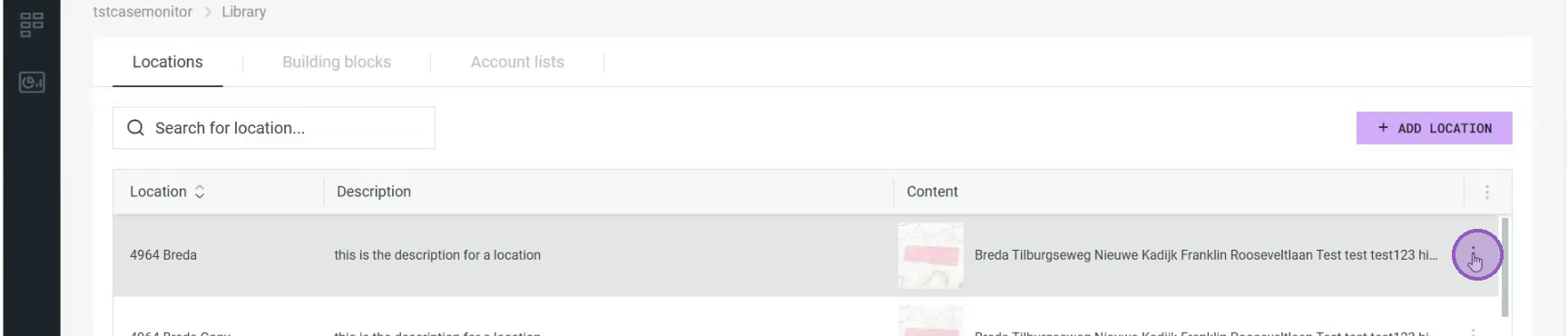
Step 1 — Open the item's menu
In any project, go to Library, pick the tab for the item type you want to share (for example Locations), and click the ⋮ (more options) icon on the row of the item you want to share.
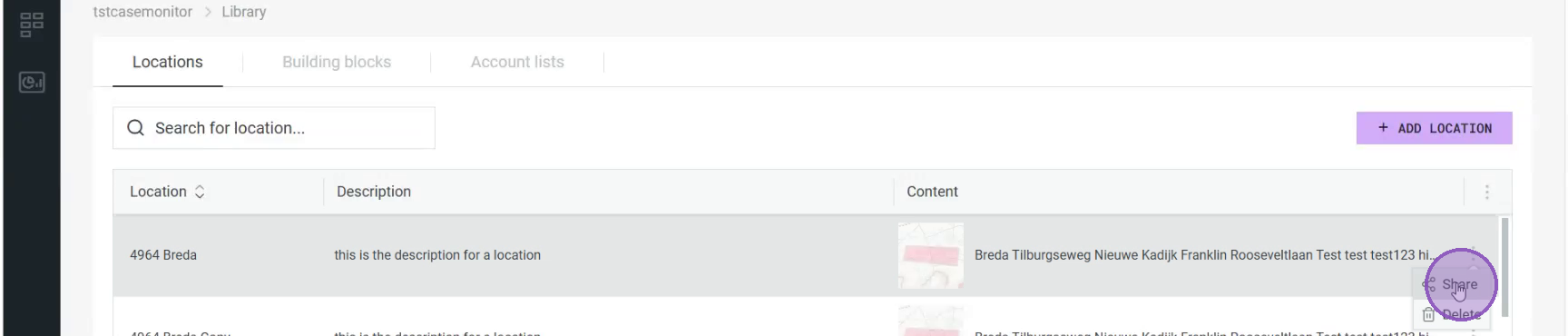
Step 2 — Select "Share"
From the menu that appears, click Share.
Step 3 — Confirm the share
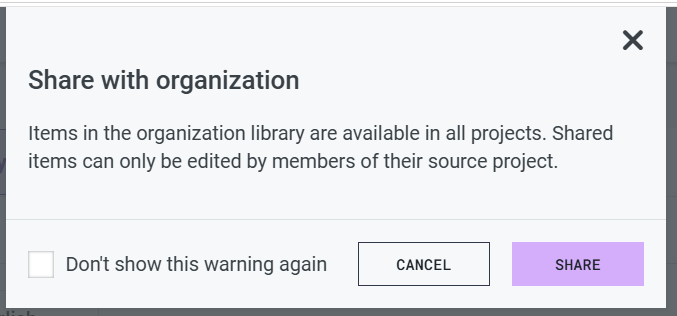
A confirmation dialog explains what sharing does:
"Items in the organization library are available in all projects. Shared items can only be edited by members of their source project."
Click SHARE to confirm.
Step 4 — The item is now available everywhere
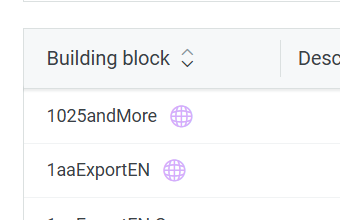
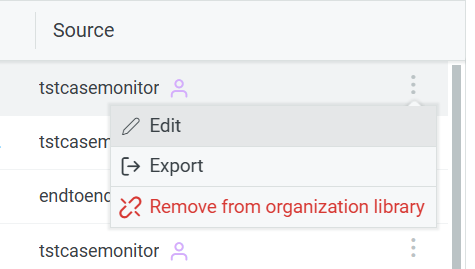
Switch to any other project in your organization and open its Library. The shared item now appears in the list automatically — no need to re-import or recreate it. A small symbol indicates which items in your list are shared accross organizations
Good to know
- Read-only for everyone else. Other projects can use a shared item (for example, apply it to a case), but they cannot edit or delete it — only the project that originally shared it owns it. Only memeber part of that project can edit it.
- Shares to the whole organization. There's currently no way to share with just one or two specific projects— sharing publishes the item to every project in your organization.
- Sharing is one-way. If you need to make changes, update the item in the original tenant; shared copies elsewhere will need to be re-shared to pick up changes (please verify current update/sync behavior before publishing, since this wasn't shown in the walkthrough).
- Permissions: previewing a shared item does not give you access to the source project.